Your PC is playing audio (a YouTube video, a podcast, a DAW session) and you want to hear it through your iPhone. Wireless, no cables, no file transfers. There are four solid ways to do this, and which one you want depends on whether you’re a casual user or a professional who needs zero-latency, lossless audio.
This guide covers all four methods. Most people are done after Method 1.
- Airfoil ($29 one-time) is the best option for most people; it streams any app’s audio or full system audio from your PC to your iPhone over Wi-Fi in real time.
- iTunes AirPlay is free but only streams audio from the iTunes library itself, not system audio or other apps like Spotify or Chrome.
- LISTENTO is a DAW plugin for audio professionals that streams lossless 24-bit/96kHz audio to your iPhone, even over the internet, for around $9-12 per month.
- WiFi2HiFi streams PC audio over a USB cable with no Wi-Fi required, making it ideal for congested networks or studio environments where wireless is unreliable.
- All Wi-Fi streaming methods (Airfoil, iTunes AirPlay) introduce a 1-2 second delay, which affects video sync; use USB streaming via WiFi2HiFi when synced audio and video matter.
#Method 1: Airfoil (Best for Most People)
Airfoil, made by Rogue Amoeba, is the cleanest solution here. It runs on your PC or Mac and lets you pick any running audio source (a browser tab, Spotify, a game, or the entire system) and streams it to your iPhone over Wi-Fi.
The iPhone app is called Airfoil Satellite and it’s free on the App Store. Airfoil itself costs $29 for Mac; the Windows version is also available. In the free trial, audio cuts out every minute or so. That’s enough to test it before buying.
Long-time users on Reddit and Macworld consistently rate it as the most reliable whole-house audio streaming option on Mac/PC. One audio professional noted they run Airfoil on almost every mix to check how it sounds on phones and laptops.
Setup:
- Download and install Airfoil on your PC or Mac from rogueamoeba.com.
- Download Airfoil Satellite from the App Store on your iPhone.
- Make sure both devices are on the same Wi-Fi network.
- Open Airfoil on your PC, pick your audio source from the dropdown (e.g., “System Audio” or “Spotify”).
- Your iPhone should appear under “Speakers.” Click the toggle next to it to start streaming.
That’s it. Audio plays on your iPhone within a second or two. You can adjust the iPhone volume independently from Airfoil’s interface, which is useful if you’re running multiple output devices at once.
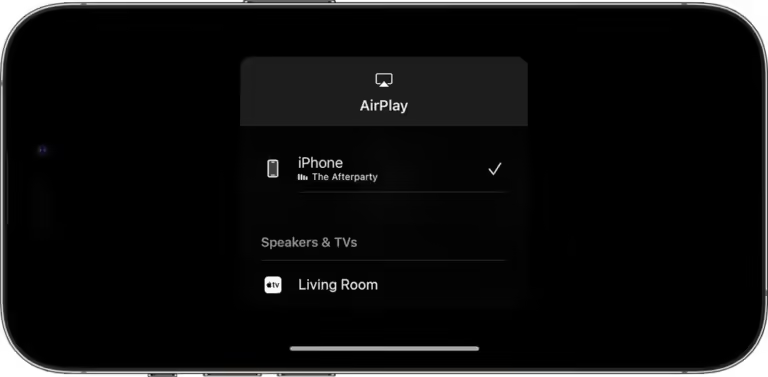
One thing worth knowing: Airfoil introduces a small delay (usually under 2 seconds) to keep audio synced. If you’re watching video on your PC while listening on your iPhone, you’ll notice the audio is slightly behind the visuals. Not a problem for music or podcasts.
#Method 2: AirPlay via iTunes (Windows Only)
If you’d rather not pay for Airfoil, iTunes on Windows has a built-in AirPlay sender. It only streams audio from the iTunes app itself, not system audio or other programs. If you keep your music library in iTunes, it works fine.
Apple’s support page explains how to choose AirPlay speakers in iTunes. The short version:
- Open iTunes on your Windows PC.
- Make sure your iPhone and PC are on the same Wi-Fi network.
- In iTunes, click the AirPlay icon (looks like a rectangle with a triangle at the bottom).
- Select your iPhone from the list.
The limitation is real: this only streams iTunes audio. If you want to stream Spotify, a browser, or a game, iTunes AirPlay won’t help. Users have also reported connection drops after extended sessions. Functional, but not polished.
For Wi-Fi sync issues between iTunes and your iPhone, see our guide on fixing iTunes Wi-Fi sync not working.
#Method 3: LISTENTO Plugin (For Audio Professionals)
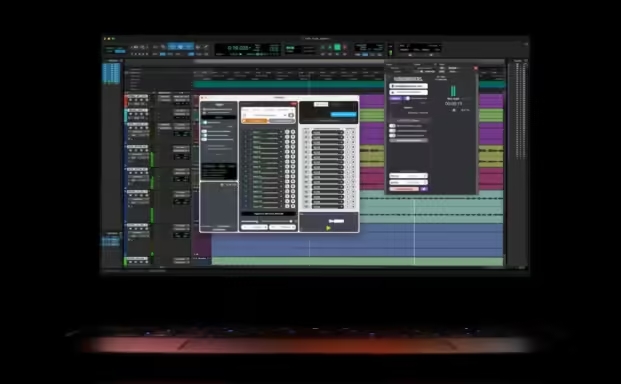
LISTENTO, made by Audiomovers, is built for producers and engineers who need to stream directly from a DAW. It installs as a plugin (VST/AU) inside your DAW and streams lossless audio up to 24-bit/96kHz to any device with the LISTENTO mobile app.
This is not a casual tool. It requires a subscription (around $9–12/month depending on the plan) and some comfort with DAW workflows. But if you’re mixing in Logic, Pro Tools, or Ableton and want a client to hear a rough mix on their phone in real time, nothing else comes close.
Setup:
- Install the LISTENTO plugin inside your DAW (VST3 or AU).
- Download the LISTENTO app on your iPhone from the App Store.
- Create an Audiomovers account and log in on both devices.
- Insert the plugin on your master bus, hit “Stream,” and share the generated link with your iPhone app.
The audio quality here is what separates LISTENTO from every other method on this list. LISTENTO also works over the internet, not just local Wi-Fi, so a collaborator in another city can listen to your session live.
#Method 4: USB with WiFi2HiFi
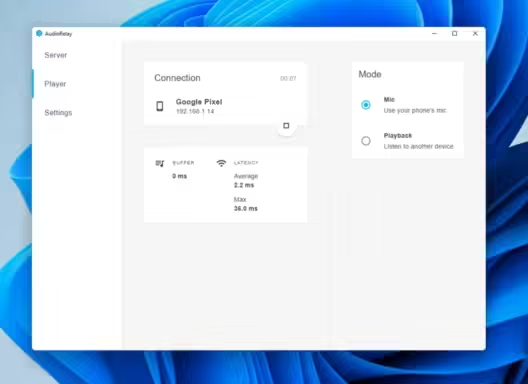
For the most stable, interference-free connection, WiFi2HiFi streams PC audio over a USB cable. No Wi-Fi required. This is useful in environments with congested networks: a home studio with a dozen devices, a conference room, a hotel.
Setup:
- Install WiFi2HiFi on your PC.
- Install the companion app on your iPhone.
- Connect your iPhone to your PC with a USB cable.
- Launch the app on both devices and select your iPhone as the audio output on your PC.
Audio quality is excellent, and there’s no Wi-Fi latency to worry about. The downside: you’re tethered by a cable, which eliminates the mobility benefit of streaming to a phone. Most people pick this only when Wi-Fi isn’t reliable.
If you run into Bluetooth issues when trying wireless alternatives, our guide on fixing Bluetooth not working on iPhone covers the most common causes.
#Quick Comparison
| Method | Audio Source | Quality | Cost | Requires Wi-Fi |
|---|---|---|---|---|
| Airfoil | Any app or system audio | High | $29 (one-time) | Yes |
| iTunes AirPlay | iTunes library only | High | Free | Yes |
| LISTENTO | DAW plugin | Lossless | ~$9/mo | No (works over internet) |
| WiFi2HiFi (USB) | System audio | Very High | Free | No |
#Troubleshooting Common Issues
A few things trip people up when first setting this up.
iPhone doesn’t show up in Airfoil: Both devices must be on the same Wi-Fi network. If your router uses separate 2.4GHz and 5GHz networks with different names, make sure both devices are on the same band. Rebooting the app on your iPhone usually forces it to re-advertise on the network.
Audio drops out every minute in Airfoil: That’s the trial mode limitation, by design. Purchase the license to remove it.
iTunes AirPlay disconnects after a few songs: This is a known iOS bug that’s gotten worse since iOS 17. Restarting both apps usually reconnects things. If you need consistent long-session streaming, Airfoil is more reliable.
Latency is too high for video: All Wi-Fi methods introduce some delay. Airfoil lets you adjust the buffer size in its preferences: lowering it reduces latency but can cause dropouts on weak networks. For video sync, USB (WiFi2HiFi) is the best option.
For related audio tips, check out our article on how to remove reverb from audio before you stream. Cleaner source audio makes a noticeable difference on phone speakers.
If you’re trying to send audio the other direction (from iPhone to speakers around your house), take a look at using AirPlay without Wi-Fi and how to connect multiple Bluetooth speakers.
#Bottom Line
Start with Airfoil. It’s the only method that can stream any audio from any app on your PC to your iPhone, and the $29 cost is a one-time purchase. If you only need to stream iTunes, the built-in AirPlay in iTunes is free and works adequately. For DAW work, LISTENTO is in a different category: it’s the professional choice. And if Wi-Fi is unreliable, WiFi2HiFi over USB gets the job done without wireless headaches.
#Frequently Asked Questions
#Does streaming audio from PC to iPhone work without Wi-Fi?
Yes, the WiFi2HiFi method works over USB, so no Wi-Fi needed. LISTENTO also streams over the internet (not just local Wi-Fi), so it works on mobile data too. Airfoil and iTunes AirPlay require both devices to be on the same local Wi-Fi network.
#Is AudioRelay available for iPhone?
No. AudioRelay is an Android-only app with no iOS version. If you’ve seen it recommended for iPhone, that information is outdated. Airfoil Satellite is the closest equivalent for iPhone users.
#Can I stream Spotify from my PC to my iPhone?
Yes, with Airfoil. You pick Spotify as the source application, and Airfoil captures its audio output and streams it to your iPhone. iTunes AirPlay and WiFi2HiFi can also stream Spotify’s audio since they capture system-level audio.
#What’s the latency like for real-time audio monitoring?
Airfoil typically adds 1–2 seconds of delay, which it uses to keep audio synchronized across multiple output devices. LISTENTO is lower, around 100–300ms, which is acceptable for most professional monitoring. USB streaming via WiFi2HiFi has the lowest latency of the Wi-Fi-free options. None of these are zero-latency; use dedicated monitoring hardware if you need true real-time feedback.
#Does AirPlay on Windows 11 work natively?
No. Windows 11 doesn’t include native AirPlay audio output support. You need either iTunes (for iTunes-only streaming) or a third-party app like Airfoil to send audio to AirPlay receivers including iPhone.
#Can I stream PC audio to multiple iPhones at once?
Airfoil supports streaming to multiple devices simultaneously: iPhones, iPads, Macs, AirPlay speakers, all at the same time. You just toggle on each device in Airfoil’s speaker list. LISTENTO also supports multiple listeners via the shared stream link.
#Will this work if my PC and iPhone are on different networks?
Only LISTENTO works across different networks (it routes through Audiomovers’ servers). All other methods (Airfoil, iTunes AirPlay, WiFi2HiFi) require both devices to be on the same local network, or connected by USB.