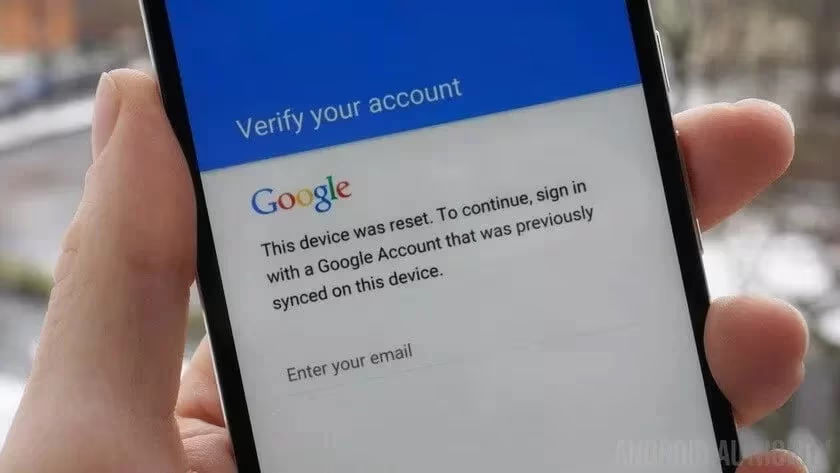
Factory Reset Protection (FRP) is a security feature Google introduced in Android 5.1 Lollipop. On Samsung Galaxy devices, FRP activates automatically when a Google account is linked during setup. After a factory reset, the phone demands the previously synced Google credentials before it can be used again.
This anti-theft measure is valuable, but it creates real problems when the original account details are unavailable. Common scenarios include buying a second-hand Galaxy phone that is still locked to the seller’s account, forgetting Google credentials after a reset, or needing a clean install to resolve persistent software issues.
- Google Account Recovery is the safest FRP bypass method — it requires no tools, preserves your warranty, and works on every Samsung Galaxy model running any Android version.
- Samsung Find My Mobile can remotely remove the FRP lock without erasing data, but only if the Samsung account was registered on the device before the factory reset.
- Professional tools like Tenorshare 4uKey for Android support Samsung devices running Android 6 through 15 and typically complete the bypass in 5–15 minutes.
- The emergency call dialer trick works on Samsung phones running Android 8–11 but has been patched on most devices running Android 12 and above.
- Manual bypass methods can take 15–45 minutes and success varies widely by model and Android version, while paid PC tools have consistently higher success rates.
This guide covers four proven methods that apply to virtually every Samsung Galaxy model — from budget A-series phones to older J-series devices. Model-specific quirks are addressed in a dedicated section further down.
Important: Only bypass FRP on devices you own or have explicit permission to access. Unauthorized FRP removal is illegal in most jurisdictions.
#Before You Start
Regardless of which method you choose, complete these preparation steps first:
- Charge the phone to at least 50%. Some bypass processes take 20–30 minutes, and a dead battery mid-process can cause complications.
- Back up any accessible data. Several methods involve a factory reset that erases everything on the device.
- Gather your tools. PC-based methods require a USB cable (ideally the original Samsung cable) and a Windows or Mac computer.
- Connect to Wi-Fi. The FRP lock screen on most Samsung models lets you join a wireless network — do so before proceeding, because every method below needs internet access at some point.
- Note your Android version. Tap the info icon on the FRP screen (or check Settings > About Phone if accessible). The Android version determines which manual exploits work on your device.
#Method 1: Google Account Recovery (Free, Official)
The simplest approach is recovering the Google account that triggered FRP. No tools, no exploits — just standard account recovery through Google.
- On a separate device or computer, go to accounts.google.com/signin/recovery.
- Enter the email address associated with the locked Samsung phone.
- Follow Google’s recovery flow: answer security questions, confirm a recovery phone number or email, or verify your identity.
- Once you regain access, reset the password.
- Return to the locked Samsung device and enter the recovered credentials on the FRP screen.
- The phone will verify the account and proceed to the normal setup wizard.
When this works: This is the ideal path whenever you (or the previous owner) still have access to recovery options tied to the Google account. It preserves all security features and does not void the warranty.
When it does not work: If the account was created years ago with no recovery info, or if the previous owner is unreachable, you will need one of the methods below.
#Method 2: Samsung Find My Mobile
Samsung’s own device management service can remotely remove the Samsung account and Google lock — provided it was set up before the reset.
- On a computer, visit findmymobile.samsung.com and sign in with the Samsung account linked to the device.
- Select the locked Galaxy phone from the device list.
- Click Unlock and confirm.
- The device will receive a remote unlock command over the internet.
- Restart the phone. The FRP prompt should no longer appear.
Requirements: The Samsung account must have been registered on the device before the factory reset, the phone must be powered on and connected to the internet, and remote unlock must be enabled in the device’s Samsung account settings.
This method is especially useful when you remember the Samsung account but not the Google account. It works across all Galaxy models from the A01 to the S-series flagships.
#Method 3: Professional FRP Bypass Tools
When account recovery is not an option, dedicated desktop software can remove FRP programmatically. These tools communicate with the phone over USB to strip the Google account lock.
#Tenorshare 4uKey for Android
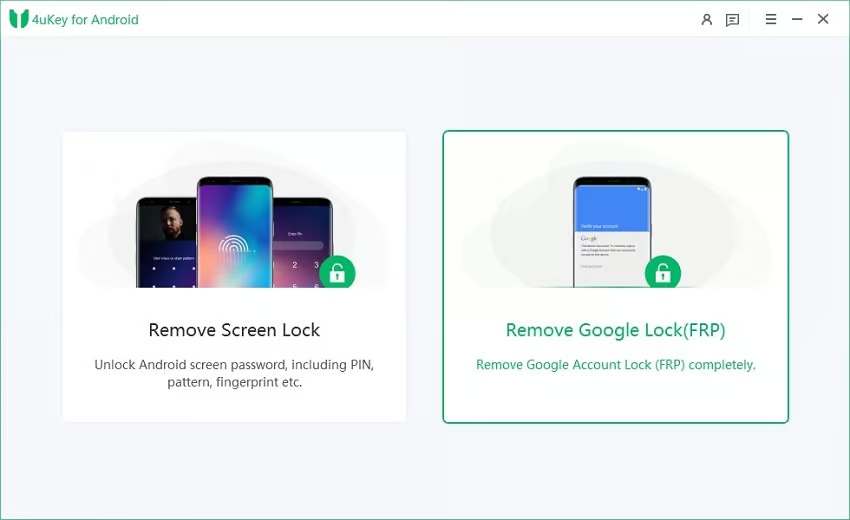
- Download and install Tenorshare 4uKey for Android on your PC or Mac.
- Connect the Samsung phone via USB cable.
- Launch 4uKey and select Remove Google Lock (FRP).
- Choose the Android version running on your device.
- Follow the on-screen prompts to put the phone into the required mode (varies by model).
- Wait for the tool to complete the FRP removal — typically 5–15 minutes.
- The phone reboots and launches the standard setup wizard without an FRP prompt.
4uKey supports Android 6 through 15 and covers the full Samsung Galaxy lineup, making it the most broadly compatible option.
#DroidKit
- Install DroidKit on your computer.
- Connect the Samsung device and select Bypass FRP.
- Choose the device model and Android version.
- Follow the guided steps — DroidKit handles firmware preparation automatically.
- The FRP lock is removed after a short processing period.
DroidKit offers a clean interface and supports a wide range of Samsung models.
#Dr.Fone – Screen Unlock
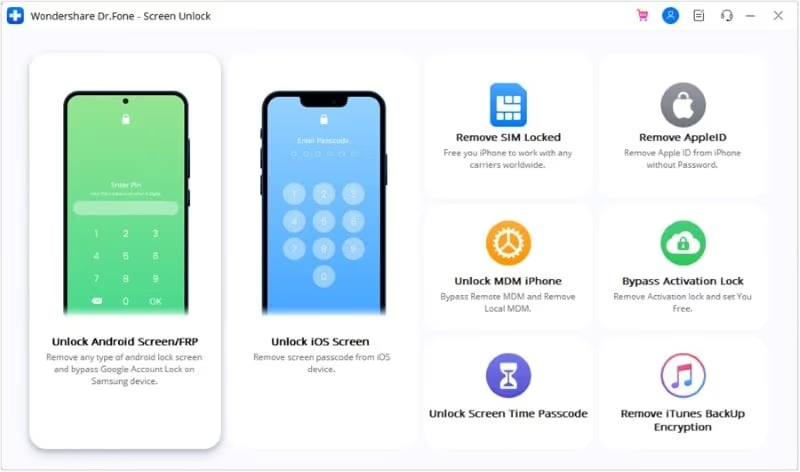
- Install Dr.Fone on your computer.
- Connect the Samsung phone and choose Screen Unlock > Remove Google FRP Lock.
- Select the Android version and follow the on-screen instructions.
- Dr.Fone will guide the phone into diagnostic/download mode and remove the lock.
Dr.Fone is regularly updated and works with both Samsung and non-Samsung Android devices.
#Methods Comparison
| Method | Cost | Difficulty | Speed | Computer Needed | Success Rate |
|---|---|---|---|---|---|
| Google Account Recovery | Free | Easy | 5–10 min | No | High (if recovery info available) |
| Samsung Find My Mobile | Free | Easy | 5 min | No | Medium (requires Samsung account) |
| Tenorshare 4uKey | Paid | Easy | 5–15 min | Yes | High |
| DroidKit | Paid | Easy | 10–20 min | Yes | High |
| Dr.Fone | Paid | Easy | 10–20 min | Yes | High |
| Manual Bypass (below) | Free | Hard | 15–45 min | No | Varies by model/Android version |
#Method 4: Manual Bypass via Settings and Emergency Call
Manual methods exploit loopholes in the Android setup wizard to reach the phone’s settings without entering Google credentials. These workarounds are free but depend heavily on the Android version and Samsung One UI build installed on the device.
#Emergency Call / Dialer Method
This approach works on many Samsung phones running Android 8 through 11.
- On the FRP verification screen, tap Emergency Call.
- Dial *#0*# (star-hash-zero-star-hash) to open Samsung’s hidden diagnostic test menu.
- In the test menu, tap Sensor or any option that opens an interactive screen.
- Press the Back button repeatedly — on some builds this drops you into the full Settings app.
- Navigate to General Management > Reset > Factory Data Reset.
- Confirm the reset. The phone will reboot and start fresh without FRP.
Note: Samsung has patched this exploit on many devices running Android 12 and above. If the dialer code does not open the test menu, try the TalkBack method instead.
#TalkBack / Accessibility Method
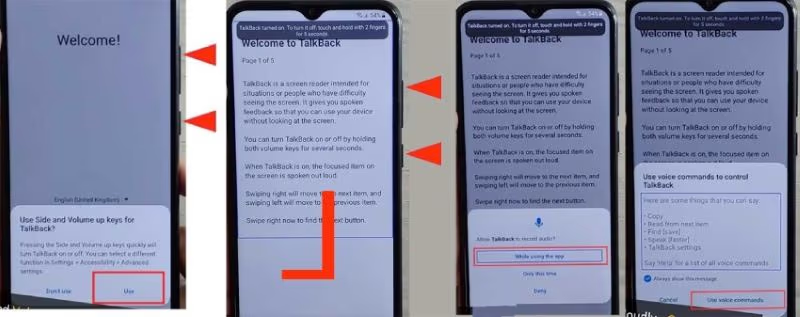
This method is more reliable on newer Android versions (11–14) where the dialer trick has been patched.
- On the FRP lock screen, press and hold Volume Up + Side Key for about 3 seconds to activate TalkBack.
- Once TalkBack is active, draw an “L” shape (swipe down then right) on the screen to open the Global Context Menu.
- Tap TalkBack Settings, then navigate to Help & Feedback.
- Open any article and tap a hyperlink — this should launch the Chrome browser.
- In Chrome, navigate to Settings by typing
chrome://settingsin the address bar, or search for and download an FRP bypass APK from a trusted source. - Use the browser to access the phone’s Settings app (search for “settings” in Google and tap the shortcut).
- In Settings, go to Accounts and remove the Google account, or perform a factory reset from General Management > Reset.
#SIM Card PIN Method
This method works on certain older Samsung models.
- Insert a SIM card that has a PIN lock enabled.
- When the phone prompts for the SIM PIN, enter it incorrectly three times.
- The system may offer a “Forgot PIN” option that redirects to a browser.
- Use the browser to download and install an FRP bypass APK via an OTG cable method.
For a full walkthrough of PC-free methods, see the dedicated guide on how to bypass FRP without computer. If you prefer a PC-assisted approach, the bypass FRP with PC guide covers additional tools and techniques.
#Samsung Model-Specific Notes
While the four methods above apply broadly, each Samsung model has hardware and software differences that can affect the bypass process. The table below summarizes key details for the most commonly searched models.
| Model | Android Versions | Chipset | Known Quirks |
|---|---|---|---|
| Galaxy A01 | 10 | Snapdragon 439 | Limited RAM (2 GB) can cause TalkBack method to lag. The Google Keyboard settings method tends to be more reliable. Dialer code *#0*# may not open the test menu on all firmware builds. |
| Galaxy A10 | 9–11 | Exynos 7884 | Emergency call dialer method works on Android 9 and 10 but is patched on Android 11 updates. TalkBack method is the recommended fallback. |
| Galaxy A12 | 11–13 | MediaTek Helio P35 | Ships with Android 11+, so the dialer trick is usually patched. Professional tools (4uKey, DroidKit) have the highest success rate. The FRP bypass APK method via OTG cable is a viable free alternative. |
| Galaxy A20 | 9–11 | Exynos 7884 | Similar hardware to the A10; bypass methods behave identically. The SIM card PIN trick works on early Android 9 builds. Samsung Find My Mobile is effective if the Samsung account was configured. |
| Galaxy A21s | 10–12 | Exynos 850 | One UI Core (lite version) may display slightly different menu paths during TalkBack bypass. When using professional tools, select “All Android Versions” mode for best results. |
| Galaxy A50 | 9–11 | Exynos 9610 | More capable hardware means faster processing during tool-based bypass. The emergency call method works reliably on Android 9 and 10. On Android 11, use TalkBack or a professional tool. |
| Galaxy J7 (all variants) | 6–9 | Exynos 7870 / Snapdragon 625 | Oldest model in this list; runs Android 6–9 depending on variant (J7 2016, J7 Pro, J7 Prime). The Samsung FRP Helper tool (free, Windows-only) was designed for these older Android versions and works well here — see best FRP bypass programs for details. Dialer method is very reliable on Android 7 and 8. |
#Troubleshooting Common Issues
Phone not detected by PC software:
- Try a different USB cable — non-data cables (charge-only) will not work.
- Switch to a different USB port, preferably a USB 2.0 port on the back of a desktop PC.
- Install or update Samsung USB drivers from the Samsung developer site.
- Temporarily disable antivirus software, which sometimes blocks ADB connections.
Dialer code does not open the test menu:
- The code
*#0*#is firmware-dependent. On some carrier-branded models it is disabled. Try the TalkBack method instead.
TalkBack will not activate:
- Ensure the phone’s volume is turned up. On some models, TalkBack requires the volume keys to be held for 5 seconds instead of 3.
- If TalkBack has been removed from the firmware (rare on Samsung), this method will not work. Use a professional tool.
“APK installation blocked” error:
- The phone needs “Install from Unknown Sources” enabled. Navigate to Settings > Security (if accessible through a browser shortcut) and toggle it on.
- If Settings is not reachable, use the FRP bypass APK via OTG cable approach instead.
Bypass tool says “unsupported device”:
- Update the tool to the latest version. New Samsung models and firmware builds are added regularly.
- Check that you selected the correct Android version within the tool.
Stuck in a boot loop after bypass:
- Hold Volume Down + Power for 10 seconds to force restart.
- If the loop continues, boot into Recovery Mode (Volume Up + Power) and select Wipe cache partition.
- As a last resort, perform a full factory reset from Recovery Mode.
For more tools and approaches, see the guide to the best FRP bypass programs. Users dealing with Motorola devices can refer to the Motorola FRP bypass tool guide instead. To prevent FRP from activating on future resets, see how to disable FRP lock before performing a factory reset.
#FAQs
Q: Is bypassing FRP legal? A: Bypassing FRP on a device you own or have the owner’s explicit permission to access is legal. Doing so on a stolen or unauthorized device is illegal and may carry criminal penalties.
Q: Will bypassing FRP erase all data on the phone? A: It depends on the method. Google Account Recovery and Samsung Find My Mobile typically preserve data. Manual methods that involve a factory reset will erase everything. Professional tools vary — some remove only the FRP lock, while others perform a reset as part of the process.
Q: Do these methods work on the latest Samsung phones with Android 14 or 15? A: Professional tools like Tenorshare 4uKey and DroidKit are updated regularly and support up to Android 15. Manual methods (TalkBack, dialer codes) are less reliable on newer Android versions because Samsung patches exploits with security updates.
Q: Can FRP be bypassed without any computer at all? A: Yes. Google Account Recovery, Samsung Find My Mobile, and manual methods (TalkBack, emergency call, SIM PIN) do not require a computer. See the full bypass FRP without computer guide for details.
Q: How long does the FRP bypass process take? A: Google Account Recovery takes 5–10 minutes. Professional tools typically finish in 5–20 minutes. Manual methods can take 15–45 minutes depending on the exploit path and Android version.
Q: Will bypassing FRP void the Samsung warranty? A: Using official methods (Google Account Recovery, Samsung Find My Mobile) does not affect warranty status. Third-party tools and manual exploits may void the warranty, as they involve modifying security settings outside Samsung’s intended workflow.
Q: After bypassing FRP, can I set up a new Google account normally? A: Yes. Once FRP is removed, the phone boots into the standard setup wizard. You can sign in with any Google account and FRP will reactivate automatically to protect the device going forward.
Q: What is Samsung FRP Helper and does it still work? A: Samsung FRP Helper is a free Windows tool that uses ADB commands to remove FRP on Samsung phones running Android 7.1.1 (Nougat) and earlier. It works well on older models like the Galaxy J7 series but is not compatible with Android 8.0 and above. See the best FRP bypass programs guide for more details and alternatives.