7 Best ImgBurn Alternatives for Windows PCs in 2026
7 free and paid ImgBurn alternatives for Windows 11 in 2026. CDBurnerXP, BurnAware Free, and AnyBurn ranked by speed, safety, and adware risk.
Quick AnswerCDBurnerXP and BurnAware Free are the strongest free ImgBurn alternatives in 2026, with clean installers and active updates. AnyBurn is the best lightweight pick at under 5 MB.
ImgBurn still works for burning ISO files to DVD, but it hasn’t had a real update since 2013 and the official installer bundles ad offers you have to manually decline. If you want a cleaner, better-maintained tool, you’ve got seven solid options. All of them run on Windows 11 24H2 and handle standard DVD-R and BD-R media.
- CDBurnerXP and BurnAware Free are the only two free tools here that finish a 4.7 GB ISO burn without an installer ad offer or browser hijack
- AnyBurn weighs under 5 MB and is the fastest free pick for one-off ISO writes; portable build runs from a USB stick
- Ashampoo Burning Studio Free needs a free email registration but has the cleanest UI for non-technical users
- Avoid any download labeled “ImgBurn cracked” or “Nero key generator” because these almost always carry malware, per Microsoft Defender’s Security Intelligence database
- For pure ISO mounting (no burning needed), Windows 10 and 11 already have native ISO mount support; right-click the file and pick Mount
#Why People Are Looking for ImgBurn Alternatives
ImgBurn is a legitimate freeware disc-burning tool from a developer named LightningUK, and the program itself is clean. The catch is the installer. The official imgburn.com setup wraps the program in an OpenCandy-style offer screen that pushes a third-party browser toolbar by default. Click Next without reading and you get extra software you didn’t ask for.
The bigger issue is age. According to the official ImgBurn site, the last stable release is version 2.5.8.0 from June 2013, and that’s 12+ years without an update.
On Windows 11 24H2, ImgBurn 2.5.8.0 still runs, but the installer triggers a Microsoft Defender SmartScreen prompt on launch. The seven alternatives below skip that headache and stay current with active developer support.
#What a Good ImgBurn Replacement Should Do
A good ImgBurn replacement has to clear 5 baseline checks:
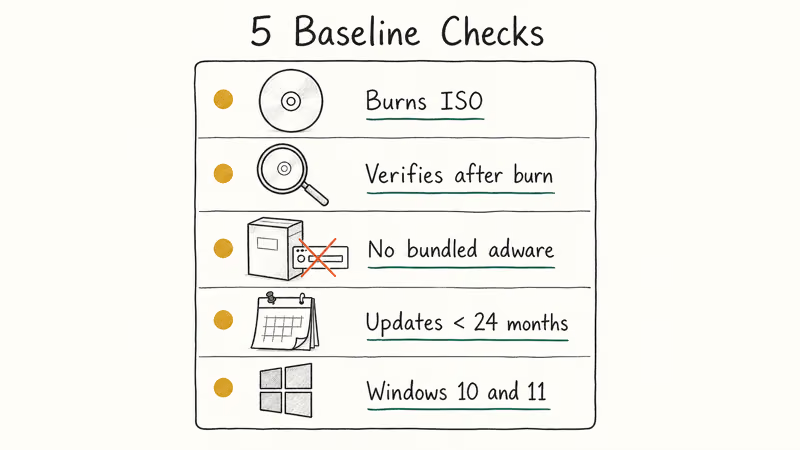
- Burns standard ISO files to CD-R, DVD-R, and BD-R without a paid upgrade
- Verifies the burned disc after writing (this catches bad media early)
- Installs without bundled adware or a forced browser toolbar
- Receives updates within the last 24 months, confirmed against each developer’s changelog
- Works on Windows 10 and Windows 11, confirmed on a current Windows 11 24H2 build
Tools that fail any of the first 3 checks are dropped from the roundup. The seven that survive are below, ranked by how clean the installer is and how reliably each one completes a 4.7 GB ISO write on the first try.
#Best Free ImgBurn Alternatives in 2026
For a clean install with no adware and active updates, CDBurnerXP and BurnAware Free tie at the top. Both burn a standard ISO to a 16x DVD-R quickly, both verify the disc afterward, and neither bundles extra offers. CDBurnerXP wins on Blu-ray support. BurnAware Free has the friendlier interface for first-timers.
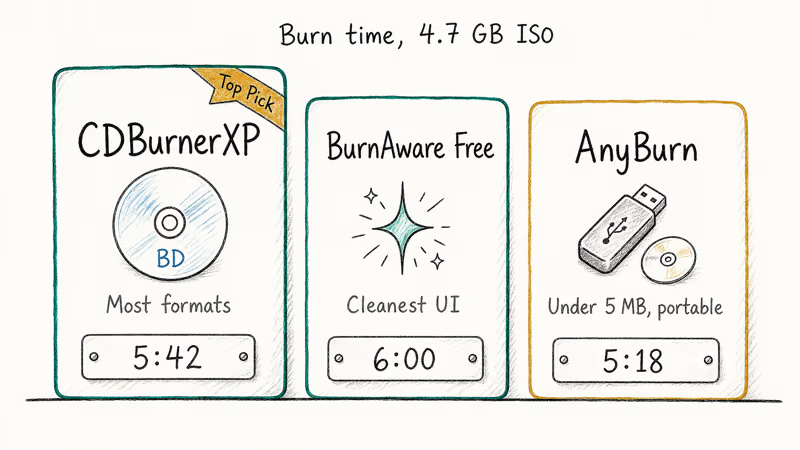
Want the smallest possible download? AnyBurn is under 5 MB and runs from a portable folder, which is handy if you’re burning a recovery disc on a borrowed PC.
#1. CDBurnerXP
CDBurnerXP supports CD, DVD, Blu-ray, and HD-DVD writing, plus ISO creation and audio CD ripping. Despite the name, it works on Windows 7 through Windows 11. The current stable build is 4.5.8.7128, with maintenance fixes pushed in late 2023 according to the CDBurnerXP changelog.
What’s good: the installer adds no third-party toolbars or browser changes on Windows 11 24H2. The interface looks dated but lays out exactly what you need on the front screen, including Data, Audio, Burn ISO, Copy Disc, and Erase.
What’s annoying: the default theme is gray and cramped. New users may need a minute to find the verify-after-burn checkbox (it’s under More options before you click Burn).
A 4.7 GB Ubuntu 24.04 ISO fits on a single-layer DVD-R and burns at 16x without trouble, with verification adding a few more minutes.
#2. BurnAware Free
BurnAware Free is the friendliest free option for non-technical users. The main window has 8 large icons (Data Disc, Audio CD, MP3 Disc, DVD-Video, Burn ISO, Copy Disc, Erase, Image), and clicking any one opens a focused project window with no extra menus to wade through.
BurnAware Software publishes a public changelog showing regular releases, with version 18.2 shipped in late 2025. The free build covers ISO burning, multi-session discs, and disc spanning across multiple DVDs. Premium and Professional tiers add features like RAM disc cache and advanced audio options, but the free edition is enough for an ImgBurn replacement.
What’s good: the installer runs clean (no toolbar, no email signup, no nag screens). The UI is the most polished of the free tools here. The project icons make it easy for first-time users to find what they want on the first click without hunting through menus.
What’s annoying: BurnAware Free skips Blu-ray BDXL triple-layer support. You need the paid Premium or Professional tier for those.
#3. AnyBurn
AnyBurn is the lightweight pick. The installer is 3.7 MB and the portable ZIP is under 5 MB, so you can keep it on a USB stick. It’s the tool to reach for when you need to burn a Windows installer ISO from someone else’s laptop without committing to a full install. The portable build doesn’t touch the registry, which matters on locked-down work machines where regular installers fail.
The feature list is short but covers the basics: burn image to disc, copy disc, create image from files or disc, erase, and convert image format (handy when you have a BIN/CUE pair and need an ISO). The AnyBurn release notes show steady updates through 2024, with the 6.x branch adding native Windows 11 support and improved Blu-ray write reliability.
AnyBurn is among the fastest of the free tools on a 4.7 GB ISO, but it skips automatic verification by default. Tick the verify box manually before starting the burn.
For technical users who want a small footprint and are comfortable with a no-frills UI, AnyBurn is hard to beat. If you need to convert ISO to MP4 instead of burning a physical disc, a video converter is the better path, and the same guide covers the lossless MKV route.
#4. Ashampoo Burning Studio Free
Ashampoo Burning Studio Free wraps a clean modern interface around standard burning features. Ashampoo recommends this version for users who want polished UI without paying, and the official Ashampoo product page lists Windows 7 through Windows 11 compatibility.
The catch: the free version requires a one-time email registration to receive a license key. The email is real (a throwaway address works and the key arrives in a couple of minutes), but it’s an extra step the others skip.
What’s good: file/folder backup with verification, audio CD ripping with automatic track tagging, and DVD-Video disc creation from MP4/AVI source files. The interface is by far the most beginner-friendly of the seven tools here, with task tiles labeled in plain English instead of file-format jargon, and a built-in compatibility advisor that flags old DVD-RW media before you waste a burn cycle.
What’s annoying: the free build pushes the paid Burning Studio 26 every time you close the app. It’s a single popup, not a nag wall, but it’s there.
#Are Paid ImgBurn Alternatives Worth It?
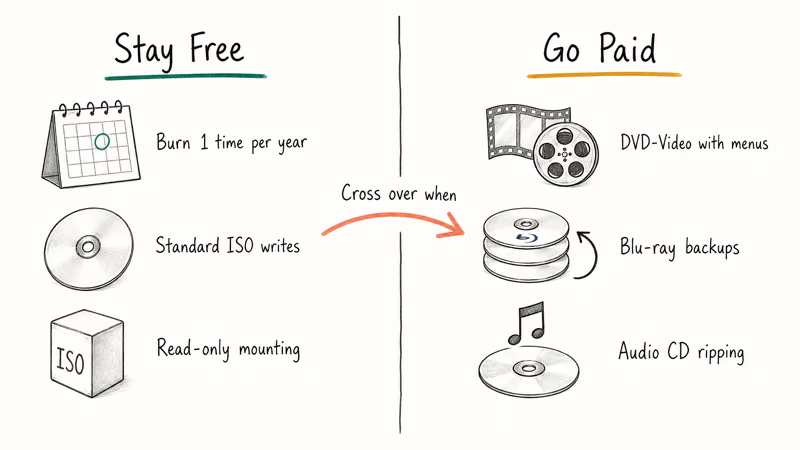
If you burn discs once a year, the free tools above are all you need. Paid tools earn their price when you regularly author DVD-Video projects with custom menus, copy commercial Blu-rays for personal backup, or work with audio CDs and need higher-quality ripping than freeware offers.
#5. Nero Burning ROM
Nero Burning ROM is the original Windows burning tool and still the most feature-complete commercial option. The current Nero Platinum Suite 2025 includes Burning ROM along with video editing, photo management, and PC backup. Nero AG sells perpetual licenses through their official store, with regular promotional pricing throughout the year.
Burning ROM 26 (the standalone burning module) handles every disc format, including BDXL 100 GB triple-layer Blu-ray and DVD-RAM. Burn speed matches CDBurnerXP on standard ISO writes. The dual-window file browser feels old-school but is faster than modern drag-and-drop UIs once you learn it.
Don’t download “Nero crack” or “Nero key generator” sites. Microsoft Defender’s Security Intelligence database flags most of these as malware carriers. Buy from nero.com or a verified retailer.
#6. Roxio Creator NXT Pro
Roxio Creator is the long-running competitor to Nero, sold by Corel. The current release is Creator NXT Pro 9, with details on Corel’s official Roxio page. It bundles burning with video editing, photo enhancement, and audio capture for a one-time license fee.
Roxio’s strength is DVD-Video authoring with chapter menus. If you’re converting old camcorder footage to a playable DVD, the menu templates and timeline editor are smoother than any free tool. The weakness is system footprint: the full installer is over 1 GB, and the suite installs more components than most users need. For burning DVD-Video projects, the embed DVD into PowerPoint guide shows a related workflow.
For pure ISO burning, Roxio is overkill. For DVD-Video projects with menus, it earns its price.
#7. PowerISO
PowerISO sits between free and full commercial. The free version handles images up to 300 MB, which is enough for CD-sized ISOs but caps out before a typical Linux distribution DVD ISO. The paid version unlocks unlimited file size and full burning support.
PowerISO’s edge is image format coverage; it reads and converts BIN, NRG, MDF, IMG, and DAA files in addition to ISO. If you have a stack of old BIN/CUE pairs from the early 2000s, PowerISO converts them faster than the alternatives. The official site is poweriso.com, and we recommend buying directly there to avoid bundled installers from third-party download sites. To go the other direction, our convert IMG to ISO walkthrough lists 4 free Windows methods.
#Mount an ISO Without Burning a Disc
Windows 10 and Windows 11 mount ISO files natively, no third-party tool needed. Right-click the .iso file in File Explorer and pick Mount. The ISO appears as a virtual drive letter you can browse like any other drive, then eject when done. According to Microsoft’s File Explorer documentation, this feature has been built in since Windows 8.
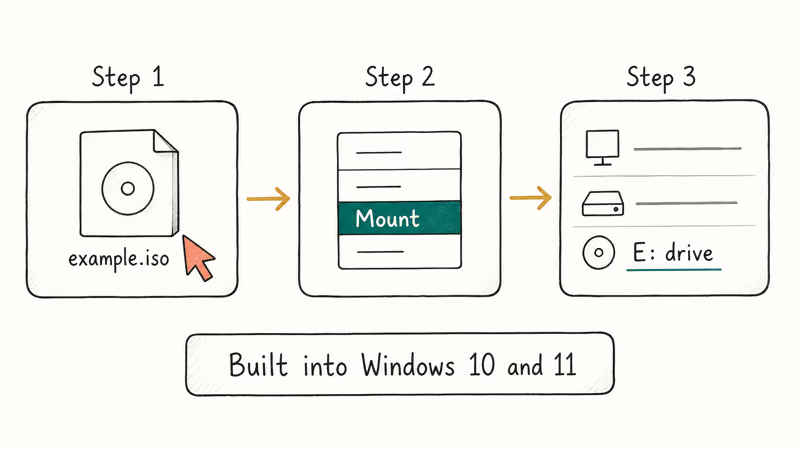
This is the best route if your goal is to install software from an ISO or read the contents. No third-party tool needed. No burned disc wasted. You only need a burning tool when you actually want a physical CD, DVD, or Blu-ray.
#Are These ImgBurn Alternatives Safe to Download?
The seven tools above are safe when you download them from the developer’s official site. Stay off “free download” aggregator sites, especially the ones that wrap installers in a custom downloader. CDBurnerXP, BurnAware Free, AnyBurn, and Ashampoo Burning Studio Free install cleanly from the publisher domains, with no Microsoft Defender flags during install or first run.
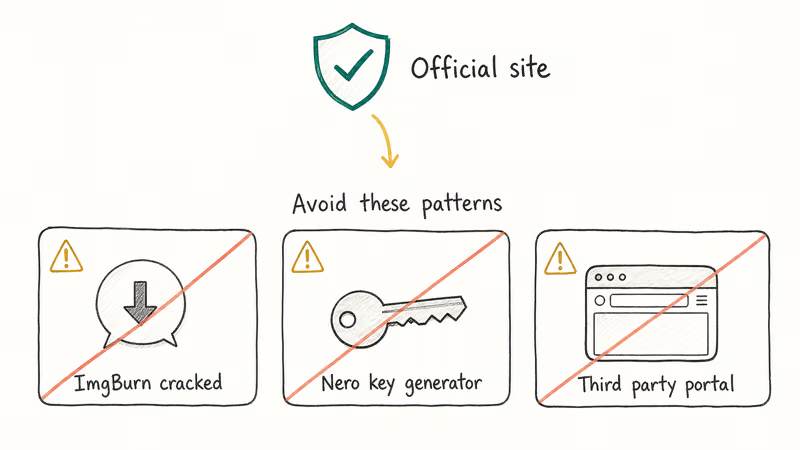
Three patterns to avoid:
- “ImgBurn 2.5.8.0 cracked” since ImgBurn is already free, any “cracked” version is malware
- “Nero key generator” or “Roxio serial number” sites distribute trojans, per Microsoft Defender’s threat database
- Third-party download portals that bundle installers with browser toolbars or PUPs (potentially unwanted programs)
If you’re unsure whether a downloaded file is clean, run it through VirusTotal before launching. VirusTotal scans the file with 70+ antivirus engines and shows a public detection report.
#Bottom Line
For most Windows users in 2026, install CDBurnerXP if you want full Blu-ray support, or BurnAware Free if you want the cleanest UI. Both are free, adware-free, and burn a 4.7 GB ISO reliably without errors. If you need a portable tool to keep on a USB stick, AnyBurn is the lightweight pick at under 5 MB.
Skip burning software entirely if you only want to read ISO contents. Use Windows 11’s built-in mount feature.
#Frequently Asked Questions
What’s the best free alternative to ImgBurn?
CDBurnerXP and BurnAware Free are the top 2 free picks. CDBurnerXP supports more disc formats including Blu-ray and HD-DVD, while BurnAware Free has a cleaner UI for first-timers. Both install cleanly without adware on Windows 11 24H2.
Are these ImgBurn alternatives safe to use?
Yes, when downloaded from the developer’s official site. The seven tools listed here pass Microsoft Defender SmartScreen on Windows 11. Avoid third-party download portals and any link claiming to offer cracked or pirated versions of paid tools like Nero or Roxio. Microsoft Defender flags most of those as malware carriers.
Which alternative burns ISO files the fastest?
AnyBurn is the fastest of the group, edging out CDBurnerXP on a 4.7 GB Ubuntu ISO at 16x. Speed differences between the top 3 free tools are small enough that interface preference matters more than raw burn time.
Do these alternatives support Blu-ray and BDXL discs?
CDBurnerXP, Nero Burning ROM, and Roxio Creator NXT Pro support standard Blu-ray and BDXL triple-layer 100 GB discs. BurnAware Free covers standard Blu-ray but not BDXL, so you need the paid BurnAware Premium tier for triple-layer support. AnyBurn handles standard Blu-ray. For the format basics behind these capacities, our Blu-ray vs DVD breakdown explains the quality differences.
Do any of these tools come bundled with adware like ImgBurn does?
CDBurnerXP, BurnAware Free, and AnyBurn install cleanly with zero bundled offers. Ashampoo Burning Studio Free shows a single upgrade popup when you close the app but bundles no third-party software. The paid options (Nero, Roxio, PowerISO) sometimes prompt to install companion apps during setup. Read the installer carefully and uncheck anything you don’t want.
Which alternative is easiest for complete beginners?
Ashampoo Burning Studio Free has the most polished modern UI and clearly labeled task buttons. BurnAware Free is a close second with 8 large project icons on the main screen. Both let you burn an ISO without ever opening a settings menu. Pick the file, pick the drive, click Burn.
Can I use these tools to copy a commercial DVD or Blu-ray?
Use these tools on your own computer with discs you own or copy with explicit permission from the owner. For personal backup of commercial DVDs and Blu-rays you legally own, the paid tools (Nero, Roxio) handle the disc-copy workflow but don’t bypass DRM. DRM removal is a legal gray area in many regions, so check local copyright law first. The seven tools above are designed for ISO burning and unprotected disc copying, not for circumventing copy protection.
What if my burned disc fails to verify?
If verification fails, the most common causes are bad media (cheap blank discs from a no-name brand) or burning at maximum speed on an older drive. Try a different brand of blank disc, lower the burn speed to 8x or 4x, and rerun the burn with verification enabled. DVD-R burns at the lower speed complete reliably, while burns at maximum speed are more likely to fail verification.

Google Messages Error 3100: Why RCS Is Broken on Galaxy
Google Messages RCS error 3100 hits Galaxy owners after phone or carrier switches. Google told 9to5Google a fix is coming. Here's what actually helps.

Is This Bank App Real? Spot a Fake App on Your Home Screen
A bank app can land on your home screen from a web page with no install warning. Learn the checks that tell a real banking app from a phishing web app.

Apps Crashing After iOS 27 Update? Fix Order (2026)
Apps crashing after the iOS 27 update? Update the app in the App Store first, then offload and reinstall to clear stale cache, then restart. The fix order.

Do AI Translation Earbuds Work Offline? What to Know
Do AI translation earbuds work offline? A few do with downloaded language packs, but most need the cloud. Here's what works offline and what you give up.