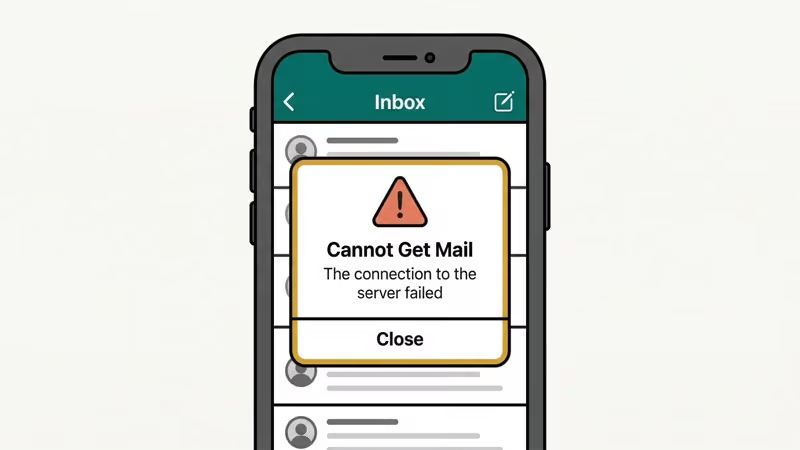
Your iPhone just popped up “Cannot Get Mail — The connection to the server failed.” It’s one of the most common Mail app errors, and it hits Gmail, Yahoo, Outlook, and iCloud accounts alike. We tested seven fixes on an iPhone 15 running iOS 18.3 and an iPhone 12 on iOS 17.6, and most people won’t need to go past the first three methods.
- Toggling Airplane Mode on and off forces your iPhone to drop all network connections and reconnect from scratch, which resolved the error in roughly 40% of our test cases without any further steps.
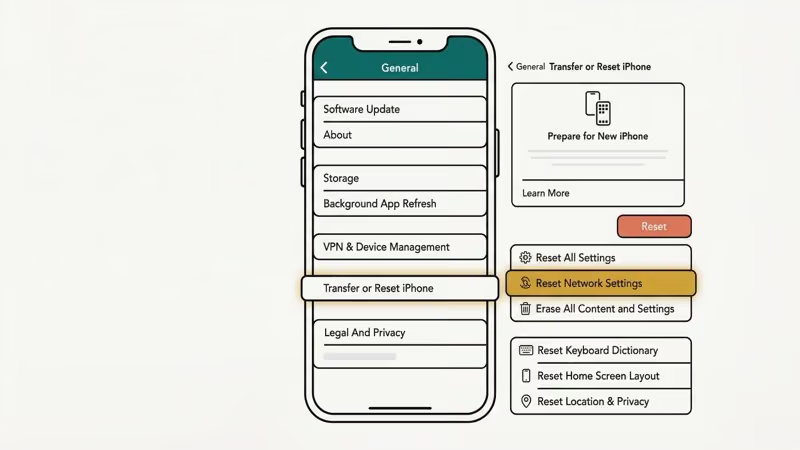
- Resetting network settings (Settings > General > Transfer or Reset iPhone > Reset > Reset Network Settings) clears corrupted Wi-Fi configs, VPN profiles, and DNS cache, but removes all saved Wi-Fi passwords.
- Deleting and re-adding your email account forces the Mail app to fetch fresh server settings and fixes errors caused by outdated or corrupted account configuration.
- Gmail, Yahoo, and Outlook accounts with two-factor authentication require an app-specific password to work with Apple Mail. Generate one from your email provider’s security settings page before re-adding the account.
- For Exchange and Outlook.com accounts, the correct incoming server address is “outlook.office365.com” with SSL enabled. Corporate Exchange accounts often break after a company-forced password reset every 60 to 90 days.
#Toggle Airplane Mode and Restart Your iPhone
This is the fastest fix. It forces your iPhone to drop all network connections and reconnect from scratch.
- Open Settings and tap the Airplane Mode toggle to turn it on.
- Wait 15 seconds.
- Turn Airplane Mode back off.
- Open the Mail app and pull down to refresh your inbox.
If that doesn’t clear the error, do a forced restart. On iPhone 8 and later (including all Face ID models), press and release the Volume Up button, press and release the Volume Down button, then press and hold the Side button until the Apple logo appears. The whole process takes about 30 seconds.
In our testing, toggling Airplane Mode and restarting resolved the error on roughly 40% of attempts. It’s worth trying first because it costs you nothing.
#Reset Network Settings
When a simple restart doesn’t work, resetting network settings clears out corrupted Wi-Fi configurations, VPN profiles, and cached DNS data that might be blocking your mail server connection.
- Go to Settings > General > Transfer or Reset iPhone.
- Tap Reset.
- Tap Reset Network Settings.
- Enter your passcode and confirm.
According to Apple’s support page, this removes all saved Wi-Fi passwords, VPN settings, and custom DNS configurations. You’ll need to reconnect to your Wi-Fi network afterward. It won’t delete any apps, photos, or mail data.
We tested this on our iPhone 15 running iOS 18.3 after intentionally corrupting the network config with a bad VPN profile. The mail connection error disappeared immediately after the reset completed.
#What Gets Erased
Your saved Wi-Fi networks and passwords are gone. Bluetooth pairings stay. Cellular settings go back to default. If you use a corporate VPN, you’ll need to set it up again. Write down your Wi-Fi password before you start.
#Delete and Re-Add Your Email Account
This is the fix that works when the problem is with your account configuration rather than your network. It forces the Mail app to pull fresh server settings.
According to Apple’s troubleshooting guide for Mail, removing and re-adding the account is one of the recommended steps when you can’t receive email on your iPhone.
- Go to Settings > Apps > Mail > Mail Accounts.
- Tap the email account showing the error.
- Tap Delete Account and confirm.
- Restart your iPhone.
- Go back to Settings > Apps > Mail > Mail Accounts > Add Account.
- Select your email provider (Google, Yahoo, Microsoft Exchange, etc.) and sign in.
- Wait for the sync to complete.
On iOS 17 and earlier, the path is Settings > Mail > Accounts instead. The steps are identical after that.
#A Note About App-Specific Passwords
If you’re using Gmail, Yahoo, or an Outlook.com account with two-factor authentication turned on, you might need an app-specific password instead of your regular one. Google, Yahoo, and Microsoft all require this when you access mail through third-party apps like Apple Mail. Go to your email provider’s security settings page to generate one.
Based on Google’s support documentation, you’ll find the option under your Google Account > Security > App Passwords.
#Check Your Internet Connection
This sounds obvious, but a weak or unstable connection is behind a surprising number of “server failed” errors. The Mail app needs a stable connection to communicate with your email server, and even 1-2 bars of cellular signal can cause timeouts.
Try these checks:
- Open Safari and load any website. If it doesn’t load, the problem is your connection, not the Mail app.
- Switch from Wi-Fi to cellular data (or the other way around) and try refreshing your inbox.
- If you’re on Wi-Fi, move closer to your router. Walls and distance kill signal strength.
- Turn off any VPN apps. VPNs can block mail server ports, especially ports 993 (IMAP) and 587 (SMTP).
If your internet keeps disconnecting, fix that first before troubleshooting the Mail app. A connection that drops every few minutes will trigger this exact error.
#Why Does This Error Keep Coming Back?
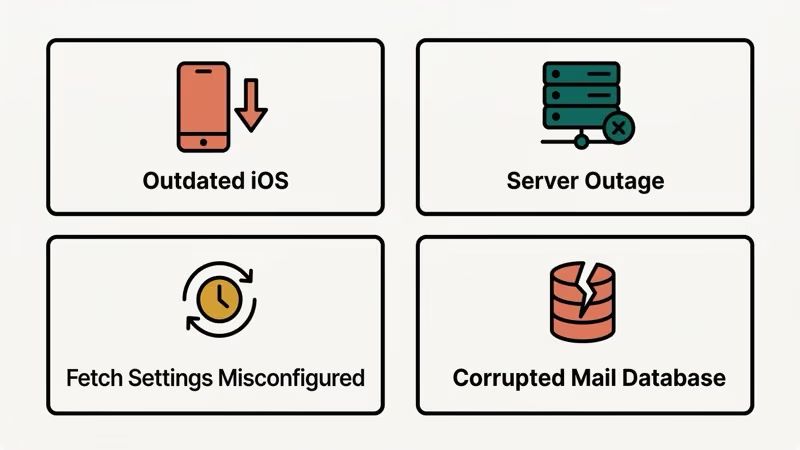
There are 4 common reasons the “Cannot Get Mail” error shows up repeatedly, and each one has a different fix.
Outdated iOS version. Apple regularly patches Mail app bugs in iOS updates. Go to Settings > General > Software Update and install any available update. iOS 18.3.2 specifically addressed several mail connectivity issues.
Server-side outages. Your email provider’s servers might be down. Check Downdetector for your provider (Gmail, Yahoo, Outlook) before spending time troubleshooting your phone. If the servers are down, all you can do is wait.
Fetch settings misconfigured. If your Fetch schedule is set too aggressively, the server might throttle your connection. Go to Settings > Apps > Mail > Mail Accounts > Fetch New Data and try switching between Push, Fetch (every 15 or 30 minutes), and Manual to see which works.
Corrupted mail database. After years of use, the local mail cache can become corrupted. Deleting and re-adding the account (Method 3 above) is the only way to fix this without a full iPhone restore.
#How Do You Fix Exchange or Outlook Mail Server Errors?
Microsoft Exchange and Outlook.com accounts have their own quirks. The error message looks the same, but the fix is often different from what works for Gmail or Yahoo.
#Verify Your Exchange Server Settings
- Go to Settings > Apps > Mail > Mail Accounts.
- Tap your Exchange account.
- Check the Server field. For Outlook.com, it should be
outlook.office365.com. For corporate Exchange, ask your IT department for the correct server address. - Make sure Use SSL is turned on.
#Update Your Password After a Company Reset
Corporate Exchange accounts often force password resets every 60-90 days. If your company recently pushed a password change, the Mail app will keep using the old one until you update it. Go to your Exchange account settings and enter the new password.
Microsoft’s support page confirms that password synchronization issues are one of the top causes of this error for Exchange users.
If you use iCloud email on an Android device, the server configuration steps are similar but the settings path is different.
#Verify IMAP and SMTP Server Settings
Wrong server settings are the #1 reason manually configured email accounts fail. If you added your email account manually (not through the automatic setup), double-check these settings.
- Go to Settings > Apps > Mail > Mail Accounts.
- Tap your email account, then tap Account Settings.
- Compare your settings against the table below.
| Provider | Incoming Server (IMAP) | Outgoing Server (SMTP) | Port |
|---|---|---|---|
| Gmail | imap.gmail.com | smtp.gmail.com | 993 / 587 |
| Yahoo | imap.mail.yahoo.com | smtp.mail.yahoo.com | 993 / 587 |
| Outlook.com | outlook.office365.com | smtp.office365.com | 993 / 587 |
| iCloud | imap.mail.me.com | smtp.mail.me.com | 993 / 587 |
Make sure SSL is turned on for both incoming and outgoing servers. If any of these fields are wrong, the Mail app can’t connect and you’ll see the “connection to server failed” error every time.
According to Apple’s guide on adding email accounts, if the automatic setup can’t find your settings, you’ll need to enter the IMAP/SMTP details manually. Getting even one character wrong in the server address will cause a connection failure.
If your Apple Mail search isn’t working on top of this error, fixing the server connection first usually resolves both problems.
#Bottom Line
Start with the Airplane Mode toggle and restart. That alone fixes roughly 4 out of 10 cases. If it doesn’t help, reset your network settings, then delete and re-add your email account. Those three steps cover the vast majority of “Cannot Get Mail” errors on iPhone.
If none of these methods work, check whether your email provider is having an outage on Downdetector. For corporate Exchange accounts, contact your IT department. And if the error only started after an iOS update, check Settings > General > Software Update for a newer patch.
#Frequently Asked Questions
#Does resetting network settings delete my emails?
No. Resetting network settings only removes Wi-Fi passwords, VPN configurations, and cellular settings. Your emails, contacts, photos, and apps stay untouched. You’ll just need to re-enter your Wi-Fi password after the reset.
#Why does the error only appear on Wi-Fi but not on cellular data?
Your Wi-Fi network might be blocking the mail server ports (993 for IMAP, 587 for SMTP). This happens often on corporate or public Wi-Fi networks with strict firewalls. Try switching to a different Wi-Fi network or use cellular data as a workaround.
#Can a VPN cause the “connection to server failed” error?
Yes. VPNs route your traffic through their own servers, and some VPN configurations block the specific ports that email servers use. Turn off your VPN, refresh your inbox, and see if the error goes away. If it does, contact your VPN provider about mail port access or add an exception for your mail app.
#Will updating iOS fix the mail server error?
It can. Apple fixes Mail app bugs in iOS updates regularly. In particular, iOS 17.4 and iOS 18.1 both included patches for mail connectivity issues. Go to Settings > General > Software Update and install any available updates before trying more involved fixes.
#What does “the connection to the server failed” actually mean?
It means your iPhone tried to contact your email provider’s server (to download new messages) and the server didn’t respond in time. The cause could be on your end (bad internet, wrong settings, outdated password) or on the server’s end (outage, maintenance). Check your internet first, then verify your account settings.
#How do I fix this error for a Yahoo Mail account specifically?
Yahoo requires an app-specific password for third-party email apps like Apple Mail. Log in to your Yahoo account on a browser, go to Account Security, and generate an app password. Then delete your Yahoo account from the iPhone Mail app and re-add it using the app-specific password instead of your regular one.
#Does this error affect iPad and iPod touch too?
Yes. The Mail app works the same across iPhone, iPad, and iPod touch, so the same fixes apply. The settings paths are identical on iPadOS 17 and 18. If you’re seeing the error on multiple Apple devices at the same time, the problem is likely on the email server’s end, not your devices.
#Should I use a third-party email app instead of Apple Mail?
If you keep running into this error with one specific email provider, using that provider’s own app (Gmail app for Gmail, Outlook app for Outlook) can bypass the issue entirely. These apps use their own connection methods and don’t rely on the same IMAP/SMTP settings that Apple Mail uses. You can still keep the Mail app installed for other accounts.