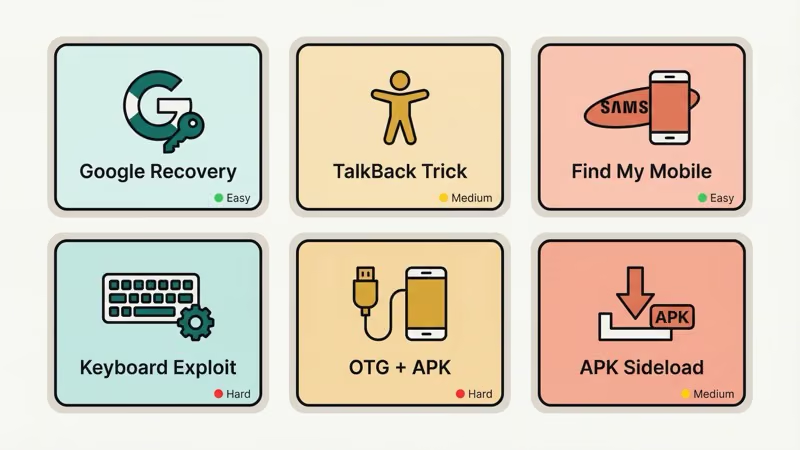
There are 6 ways to bypass FRP without a computer. Only 3 of them reliably work in 2026, and which one applies to you depends almost entirely on your Android version and device brand.
Google has steadily patched manual bypass tricks with each Android release. On Android 9 through 13, several no-PC methods still work well. On Android 14 and 15, most of the old tricks are dead: Google closed the TalkBack loophole, locked down the keyboard settings exploit, and tightened APK sideloading restrictions. This guide tells you what still works and what doesn’t.
- Google Account Recovery is the only official, risk-free method that works on every Android version and takes just 5–10 minutes to complete.
- The TalkBack accessibility trick works on Android 11–12 for most devices but has been fully patched on Android 14 and 15.
- Samsung’s Find My Mobile is the only no-wipe FRP bypass option — it removes the lock without erasing data on supported Galaxy devices running Android 8 and above.
- OTG-based APK bypass is most reliable on Android 5.0 through 10; success rates drop significantly on Android 11+ due to tighter USB storage restrictions during setup.
- For Android 14 or 15 devices, manual no-PC tricks are largely ineffective and a PC-based FRP bypass tool will save significant time and frustration.
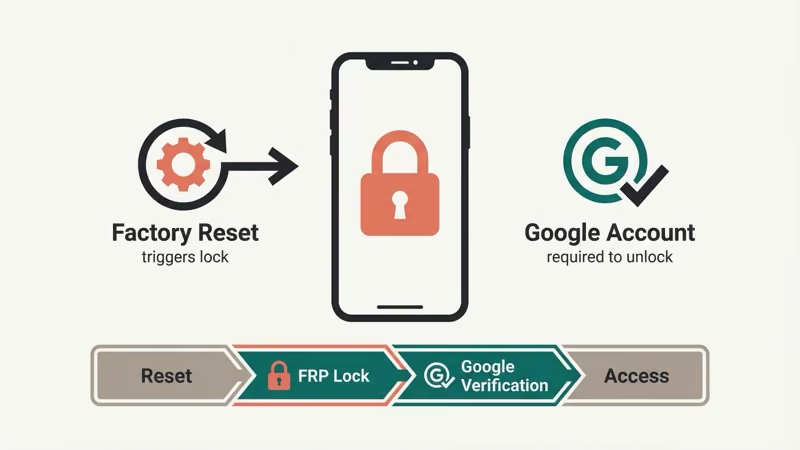
#Method 1: Google Account Recovery (Best Starting Point)
This is the official, risk-free method. It doesn’t void your warranty, doesn’t require any tools, and works on every Android version. Start here.
It works if you remember your email address but forgot the password, or if you have access to a recovery phone number or backup email.
- On the FRP lock screen, enter your Google account email address.
- When asked for a password, tap Forgot password.
- Google will offer recovery options: a verification code sent to your recovery phone number, a prompt sent to a trusted device, or security questions.
- Complete whichever recovery step you have access to.
- Set a new password when prompted, then use it to sign in and pass the FRP check.
This process takes 5–10 minutes. If you haven’t logged into that Google account in over a year, Google may ask for additional identity verification, which can take up to 3 business days via the account recovery form at g.co/AccountRecovery.
Works on: All Android versions, all brands.
#Method 2: TalkBack Accessibility Trick
This method exploits Android’s accessibility menu to navigate into device settings without signing in. It works on Android 11 and 12 on most devices. Google patched it in Android 13+ on most brands, so check your version first.
#How to enable TalkBack on the setup screen
- On the FRP lock screen, hold down both Volume Up + Volume Down simultaneously for about 3 seconds. TalkBack should activate (you’ll hear an audio cue).
- Draw an L-shape on the screen to open the TalkBack menu.
- Select TalkBack Settings.
- In TalkBack settings, tap Help & Feedback > Get started with TalkBack (or similar).
- Long-press any highlighted text on the resulting page and choose Web Search.
- Search for “Settings” in the search bar that opens.
- Open the Settings result and navigate to About Phone > Build Number. Tap it 7 times to unlock Developer Options.
- Go back, open Developer Options, and enable OEM Unlocking.
- Restart the device and proceed through setup normally.
Compatibility:
- Android 11–12: Works on most Samsung, Motorola, and generic Android devices
- Android 13: Patched on Samsung and most major brands; may still work on budget phones with delayed security updates
- Android 14–15: Patched. Don’t waste time on this one.
If TalkBack doesn’t activate, your device may have it disabled at the setup stage, which some manufacturers started doing in 2023.
#Method 3: Samsung Find My Mobile (Samsung Only)
Samsung users have a unique option here. If the original owner’s Samsung account was linked to the device and Find My Mobile was enabled, you can unlock it remotely. No PC, no APK, just a browser on any phone or tablet.
- On a second device, open a browser and go to findmymobile.samsung.com.
- Sign in with the Samsung account that was registered on the locked device.
- Select the locked phone from the device list.
- Tap Unlock (not Erase, which wipes the device; the Unlock option specifically removes the FRP lock without deleting data on supported models).
- Confirm, then follow the on-screen prompts on the locked device.
This is the cleanest method for Samsung users. It preserves data, requires no tools, and Samsung’s official support page confirms it works on all Galaxy devices running Android 8 and above with an active Samsung account.
The catch: the original owner needs to have had Find My Mobile enabled with Remote Unlock turned on. If you bought this phone secondhand and the seller didn’t remove their account, contact them and have them do this remotely. It’s the fastest path.
Works on: All Samsung Galaxy devices, Android 8+, requires prior Samsung account setup.
#Method 4: Google Keyboard Settings Exploit
This one exploits a path through Google Keyboard’s help section to reach device settings. It stopped working on most Android 13+ devices, but on phones running Android 10–12 with an older security patch level, it still functions.
- On the FRP screen, tap any text field to open the keyboard.
- Long-press the comma (,) key or the @ symbol. A Keyboard Settings option should appear.
- Tap Keyboard Settings > Help & Feedback > Using Google Keyboard.
- Long-press any text on that page and select Web Search.
- Type “Settings” in the search bar and open the Settings app.
- Navigate to About Phone and tap Build Number 7 times to enable Developer Options.
- Enable OEM Unlocking under Developer Options.
- Restart and go through setup.
This method only works if the Google Keyboard (Gboard) version hasn’t been updated to patch this route. On a brand-new out-of-the-box device in 2026, assume it’s patched. On an older device that hasn’t had recent updates, it’s worth a try.
Works on: Android 10–12, varies by security patch date.
#Method 5: FRP Bypass APK via OTG Cable
If the software tricks above don’t work, this approach loads a bypass tool directly onto the phone via a USB drive, no computer involved. You’ll need a second Android phone (or any device) to download the APK, a USB OTG adapter, and a USB flash drive formatted as FAT32.
The best FRP bypass programs include tools like FRP Bypass APK, VnROM Bypass, and Pangu FRP. Success rates vary significantly by device and Android version.
- On a second device, download a reputable FRP bypass APK. VnROM and Pangu are among the more frequently cited free options on XDA forums.
- Copy the APK file to a FAT32-formatted USB flash drive.
- Connect the OTG adapter to the locked phone’s USB-C or Micro-USB port, then plug in the USB drive.
- The device should detect the drive automatically and open a file manager.
- Navigate to and tap the APK file. If prompted about unknown sources, enable installations from unknown sources in Security settings.
- Follow the bypass app’s instructions to disable FRP verification.
- After bypass succeeds, perform a factory reset from Settings > General Management > Reset > Factory Data Reset to complete the process cleanly.
This works best on: Android 5.0–10. Compatibility drops significantly on Android 11+.
Most Android phones running Android 5.0+ support OTG. To check, look for “OTG” support in your phone’s spec sheet, or test with a USB flash drive. If the phone mounts it, OTG works.
Avoid downloading APKs from random sites. Stick to XDA Developers or established forums. XDA’s FRP bypass section is a reliable starting point for device-specific methods with user-verified success rates.
#Method 6: Google Account APK Sideload
Similar to Method 5 but targets the Google account verification layer specifically. Some devices respond to a Google Account Manager APK bypass, which replaces or supplements the account verification component.
Transfer the APK the same way as Method 5, install it, then run it before completing the device setup. This method’s reliability has dropped on Android 12+ but remains an option on older devices.
Check the Motorola FRP bypass tools page for an example of how brand-specific APK options are maintained. The landscape changes as Google patches vulnerabilities, so a tool that worked 6 months ago may not work today.
Works on: Android 8–11, varies by brand and security patch level.
#What Doesn’t Work in 2026 (Save Yourself the Time)
A few methods get recommended constantly but are effectively dead on modern devices:
| Method | Status in 2026 | Why |
|---|---|---|
| Emergency call dialer trick | Patched | Google closed this in Android 12 |
| TalkBack on Android 14–15 | Patched | Google disabled TalkBack access during setup |
| Google Keyboard route on updated devices | Patched | Gboard updates removed the exploitable help path |
| Free APK tools on Android 14+ | Mostly patched | Tighter sideloading and Play Protect restrictions |
For Android 14 and 15 devices, the honest answer is: a PC-based tool gives you a much better chance. The bypass FRP with PC guide covers those options. If you own a Samsung specifically, the Samsung FRP bypass guide has model-specific instructions with higher success rates.
#Considerations Before You Start
Two things worth knowing:
Legal: Bypassing FRP is legal only on devices you own or have explicit permission to access. Removing it from a stolen device is illegal. Google’s Android security documentation confirms FRP exists specifically as an anti-theft measure.
Warranty: Factory resets and APK sideloading generally don’t void warranties on their own, but enabling OEM Unlocking (which some methods require) may affect warranty coverage depending on your manufacturer’s policy.
If you’re trying to disable FRP lock before selling or resetting a phone you own, that’s the cleanest path: remove your Google account from the device before performing the factory reset.
#Using an OTG Cable to Bypass FRP
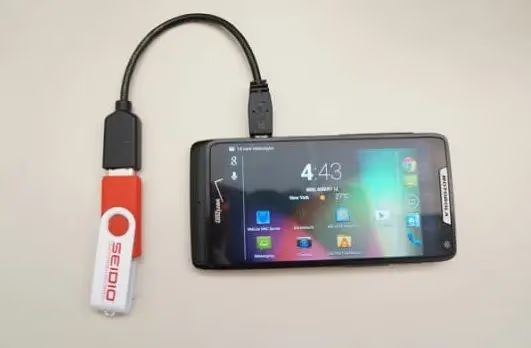
If you have a USB OTG adapter and a flash drive handy, you can bypass FRP without touching a computer. This approach works because many Android phones mount external USB storage even during the initial setup screen, giving you a way to sideload a bypass APK directly.
#What You Need
- A USB OTG adapter (USB-C to USB-A or Micro-USB to USB-A, depending on your phone’s port)
- A USB flash drive formatted as FAT32 (most phones won’t read NTFS or exFAT during setup)
- A FRP bypass APK downloaded from a trusted source like XDA Developers. Popular options include VnROM Bypass, Pangu FRP Bypass, and Samsung FRP Helper (for Galaxy devices)
You’ll need a second device to download the APK and transfer it to the flash drive.
#Step-by-Step Process
- On a working phone or tablet, download the FRP bypass APK that matches your locked phone’s brand and Android version. Save it to the root directory of the USB flash drive.
- Plug the OTG adapter into the locked phone’s charging port.
- Connect the USB flash drive to the OTG adapter.
- The phone should detect the drive and display a file browser notification or prompt. If it doesn’t, try disconnecting and reconnecting the drive, or use a different OTG adapter.
- Navigate to the APK file on the drive and tap it to begin installation.
- If the phone blocks the install with an “Unknown sources” warning, follow the on-screen prompt to enable installations from unknown sources. On some Android versions, this option appears automatically; on others, you may need to find it through the file manager’s settings menu.
- Once installed, open the bypass app and follow its on-screen instructions. Most tools will either remove the Google account verification requirement or redirect you to a settings page where you can add a new account.
- After the bypass succeeds, complete the device setup and perform a factory reset from Settings > General Management > Reset > Factory Data Reset to ensure a clean state.
#Which Android Versions This Works On
OTG-based FRP bypass is most reliable on Android 5.0 through 10. These versions allow USB storage mounting during setup with minimal restrictions.
On Android 11 and 12, it still works on some devices, but Google introduced tighter controls on APK installation during the setup wizard. You may encounter additional blocks when trying to install the APK.
On Android 13 and later, Google restricted USB storage access during the initial setup flow on most devices. The phone may not mount the flash drive at all until after setup is complete, which defeats the purpose. A few budget phones with delayed security patches are exceptions, but don’t count on it.
#Limitations and Risks
Not all phones support OTG. Most phones released after 2016 do, but some budget models lack OTG support entirely. Check your phone’s spec sheet or search “[your phone model] OTG support” before buying an adapter.
APK compatibility varies widely. A bypass tool that works on a Samsung Galaxy A12 running Android 11 may fail completely on a Pixel 6 running the same version. Always look for device-specific recommendations on XDA forums.
Security risks from untrusted APKs. FRP bypass APKs from unknown websites can contain malware. Stick to well-known sources with user reviews and verified downloads. Never install an APK that asks for permissions unrelated to FRP bypass (camera access, contact list, SMS).
The bypass may not survive a reboot. On some devices, the FRP lock reappears after restarting unless you complete a full factory reset after the bypass. Always reset the device once you regain access.
#Bottom Line
Start with Method 1 (Google Account Recovery). It works on every Android version, takes under 10 minutes, and carries zero risk. If you’re on a Samsung and have access to the original owner’s Samsung account, Method 3 via Find My Mobile is the next best option.
For Android 9–12 without account access, try Methods 2 or 4 first. For Android 14 or 15, skip the manual tricks and use a PC-based FRP bypass tool instead. It’ll save you hours of frustration.
#Frequently Asked Questions
#Does the TalkBack method still work in 2026?
It depends on your Android version. TalkBack FRP bypass works on Android 11–12 on most devices and some Android 13 phones with older security patches. It’s been patched on Android 14 and 15. Check your Android version in Settings > About Phone before trying it.
#Can I bypass FRP without the original Google account?
Yes, but it’s harder. The TalkBack trick, keyboard exploit, and OTG APK methods don’t require the original credentials. The trade-off is these methods are Android version-specific and not 100% reliable. Google Account Recovery is the only official path if you have any access to the account.
#Does FRP bypass delete my data?
Most of these methods require a factory reset after the bypass, which wipes everything. The exception is Samsung Find My Mobile’s Unlock feature: on supported Galaxy models, it removes FRP without erasing data. If preserving data matters, Samsung Find My Mobile is your only no-wipe option.
#Is there an FRP bypass that works on all Android phones?
No single method works universally. Google Account Recovery comes closest (it works on every Android version) but requires some access to the original Google account. No completely universal method exists for devices where you have zero access to the account.
#Will my phone work normally after bypassing FRP?
Yes. Once you complete setup after the FRP bypass, the phone functions like any other Android device. You can add a new Google account, use all apps, and restore from backups normally.
#What if none of these methods work on my phone?
Contact the device manufacturer’s support line with proof of purchase. Many will assist with FRP removal for legitimate owners. For Samsung devices, you can also visit a Samsung authorized service center. If you can still access the phone in recovery mode, try bypassing the Android lock screen to reach settings and remove the account manually.
#Does bypassing FRP re-enable itself after?
FRP activates automatically when you add a Google account to a device. After bypassing, if you add a new Google account during setup, FRP will be active again for that account going forward. That’s the intended behavior.